
Chapter 7 — Importing
Three things you can bring into DigitalClay3D from outside: another
modeller's project file (Clayon .cc), a 3D mesh as a translucent
template to model around (STL / OBJ), and an image whose silhouette
becomes a parametric profile (covered in Chapter 2's Intelligent
mode).
Clayon project import (.cc)
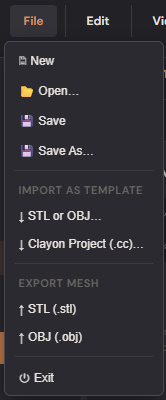
If you've used Eazao Studio / Clayon, you can bring its project files across via File → Import as Template → Clayon Project (.cc)….
What gets mapped:
| Clayon field | DigitalClay3D field | Notes |
|---|---|---|
datas (4 control points) |
RevolutionProfile | x = height, y = radius. Direct copy after axis swap. |
objectsettings.objectheight |
model.Height | mm |
objectsettings.layerheight |
layer height for path simulation | mm |
printersettings.printertype |
model.BuildPlate | Looked up by name; falls back to a Custom plate built from platform_x/y/z if not recognised. |
model_type: 0 |
Revolution mode | |
model_type: 1 |
Lofting mode (with lofting_contour.contour* → DrawnLayers) |
|
ShapeDesign.shape_* |
TextureSettings | Best-effort — see the lossy note below. |
What's lossy:
- Pattern enum — Clayon uses its own integer index (e.g.
shape_2d_pattern: 14); DigitalClay3D uses theTexture2DTypeenum. Patterns are mapped to the closest equivalent via a lookup table. Anything we can't map drops to a sensible default and a status-bar warning explains what was substituted (e.g. "Eazao 2D pattern #18 has no direct equivalent — used Hexagonal instead"). - G-code blocks (
GcodeHead,GcodeEnd) — ignored. DigitalClay3D generates its own G-code from your printer profile. - Some experimental Clayon-only knobs (e.g.
shape_doubledeck,shape_randomrtime,shape_rotateeffect) have no analogue and are silently dropped.
After import, the project loads with a status message like
Imported 'Vase1.cc' — Eazao 2D pattern #14 has no direct equivalent — used Hexagonal instead. You can then tweak the substituted pattern in
the Texture tab.
STL / OBJ as template (Reference mesh)
Sometimes you want to model a vase that fits an existing shape — a 3D-scan of a clay original, an STL someone else made — without losing the parametric workflow. The Template feature loads any STL or OBJ as a translucent blue underlay that you model around. The parametric mesh is unaffected; templates aren't part of the export.
Open via File → Import as Template → STL or OBJ….
What you get:
- The mesh appears as a translucent blue object behind the parametric model.
- The 👻 Template button appears in the toolbar; click to toggle visibility.
- A Template panel docks bottom-right with:
- Opacity slider — 0.05 (just visible) → 1.0 (solid).
- X / Y / Z translate sliders.
- X / Y / Z rotate sliders.
- Uniform scale.
- ⊕ Center — snap the template's centroid to the world origin.
- ⊥ Floor — snap the template's bottom to y = 0.
- ⟲ Reset — clear all transforms.
The parametric edits never wipe the template; the template never bakes into the parametric mesh. Both render together but only the parametric model is exported.
Limits: STL files up to ~2 million triangles import in a few seconds. Larger meshes show a clear error suggesting decimation. Imported triangles aren't re-meshed; you're seeing exactly what was in the file.
Phase-2 conversion (planned, not shipped)
A future "🌀 Convert to Editable Profile" action on the Template panel
will detect when the imported mesh is approximately a revolution body
and auto-build a RevolutionProfile that matches it. You'd then drop
the template entirely and continue with a parametric model that
visually reproduces the import. Tracked in
../planning/PROJECT_STATUS.md as Phase
2 of the import workflow.
What to read next
- Chapter 8 — Export for getting your finished parametric model out as STL / OBJ.
- Chapter 6 — Library if you want to save a template-anchored design as a starting point you can reload later.